Patching EC2 with Patch Manager
Find the number of security findings by product in Security Hub by opening the Insights page and clicking into Insight: 23. Top products by counts of findings. https://us-east-1.console.aws.amazon.com/securityhub/home?region=us-east-1#/insights/arn:aws:securityhub:::insight/securityhub/default/28
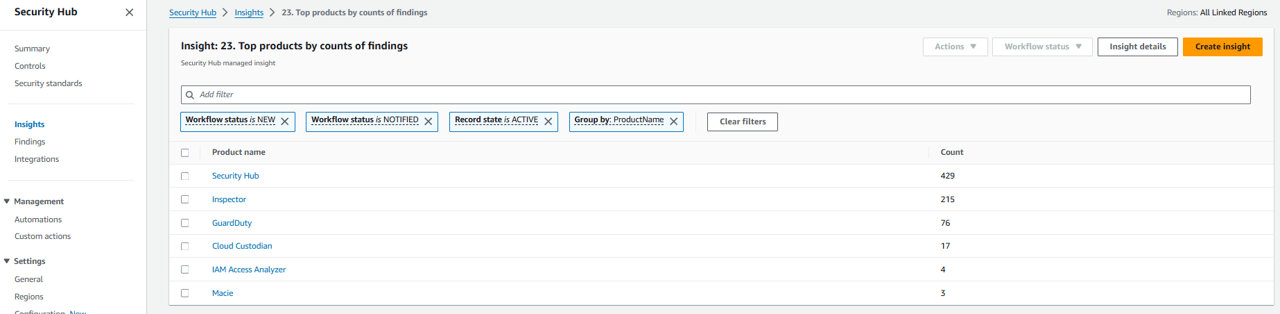
Notice that a significant portion of the security findings in your environment are coming from Inspector.
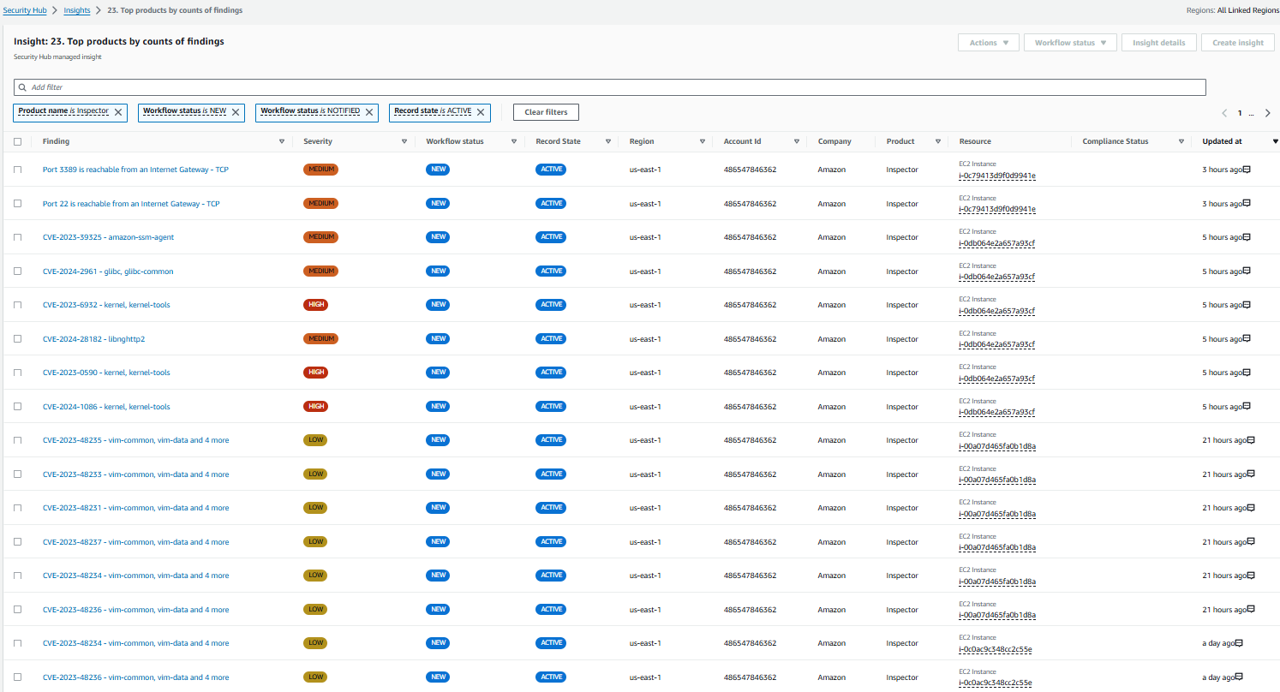
Click Inspector to see the list of individual findings. Based on the title of these findings, it appears most of them, if not all of them, are software vulnerabilities.
- Navigate to the Inspector console. https://us-east-1.console.aws.amazon.com/inspector/v2/home?region=us-east-1#/dashboard
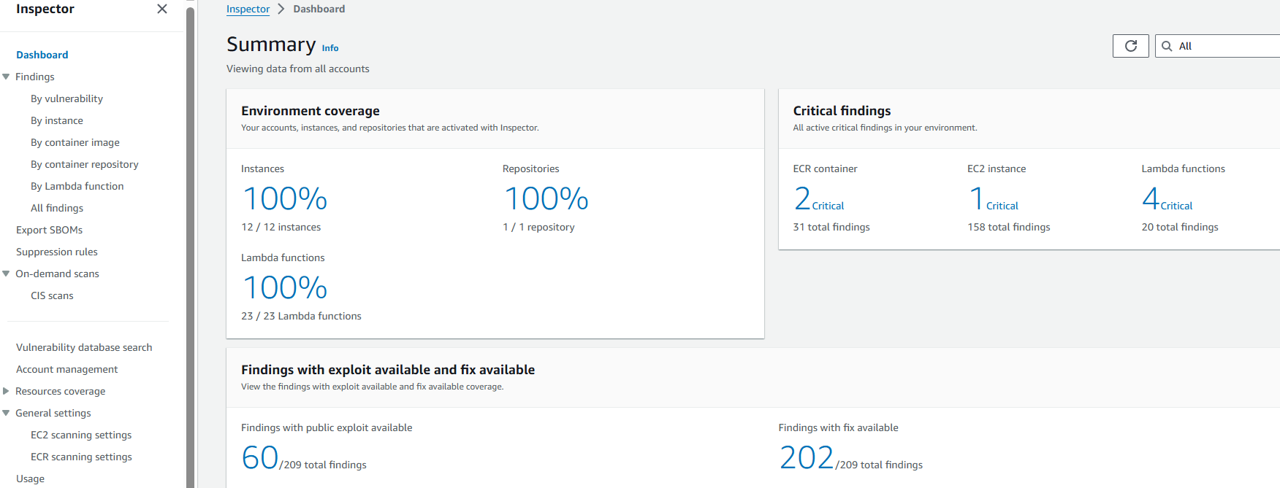
- From the Inspector dashboard, you can quickly see that most of your EC2 instances and Lambda functions are being scanned. You can also see the vulnerabilities impacting the most instances and images.
Scenario / Problem Statement: Your team has noticed a growing number of security findings from Amazon Inspector. Your team turned on Inspector to continually scan Amazon Elastic Compute Cloud (EC2), AWS Lambda functions, and container images in Amazon ECR for software vulnerabilities. However, based on the number of findings, it doesn’t appear anyone is managing those vulnerabilities. You’ve been tasked with defining and setting up patch management for your EC2 instances, starting with those being used for development.
Amazon Inspector is a vulnerability management service that continuously scans your AWS workloads for software vulnerabilities and unintended network exposure. Amazon Inspector automatically discovers and scans running Amazon EC2 instances, container images in Amazon Elastic Container Registry (Amazon ECR), and AWS Lambda functions for known software vulnerabilities and unintended network exposure.
Amazon Inspector creates a finding when it discovers a software vulnerability or network configuration issue. A finding describes the vulnerability, identifies the affected resource, rates the severity of the vulnerability, and provides remediation guidance. You can analyze findings using the Amazon Inspector console, or view and process your findings through other AWS services.
Patch Manager, a capability of AWS Systems Manager, automates the process of patching managed nodes with both security-related updates and other types of updates. You can use Patch Manager to apply patches for both operating systems and applications. (On Windows Server, application support is limited to updates for applications released by Microsoft.) You can use Patch Manager to install Service Packs on Windows nodes and perform minor version upgrades on Linux nodes. You can patch fleets of Amazon Elastic Compute Cloud (Amazon EC2) instances, edge devices, on-premises servers, and virtual machines (VMs) by operating system type.
You can scan instances to see only a report of missing patches, or you can scan and automatically install all missing patches.
Patch Manager uses patch baselines, which include rules for auto-approving patches within days of their release, in addition to optional lists of approved and rejected patches. When a patching operation runs, Patch Manager compares the patches currently applied to a managed node to those that should be applied according to the rules set up in the patch baseline. You can choose for Patch Manager to show you only a report of missing patches (a Scan operation), or you can choose for Patch Manager to automatically install all patches it finds are missing from a managed node (a Scan and install operation).
In this section you will:
- Define patch baseline
- Scan your instances with AWS-RunPatchBaseline via Run Command
- Review patch compliance for managed nodes
- Install missing patches using Run Command
- Schedule patch operations using patch policies
- Review association created by the patch policy
Define patch baseline
Navigate to Systems Manager and open Patch Manager from the navigation on the left. https://us-east-1.console.aws.amazon.com/systems-manager/patch-manager?region=us-east-1
Click Start with an overview, under the “Create patch policy” button.
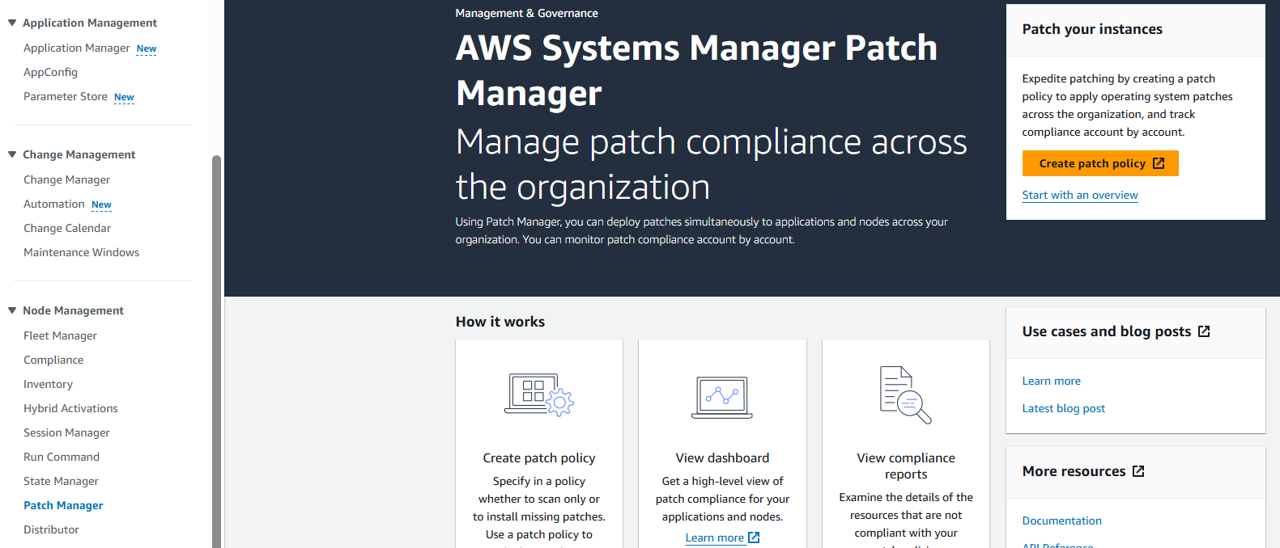
Click the tab, Patch baselines, and then select Create patch baseline.
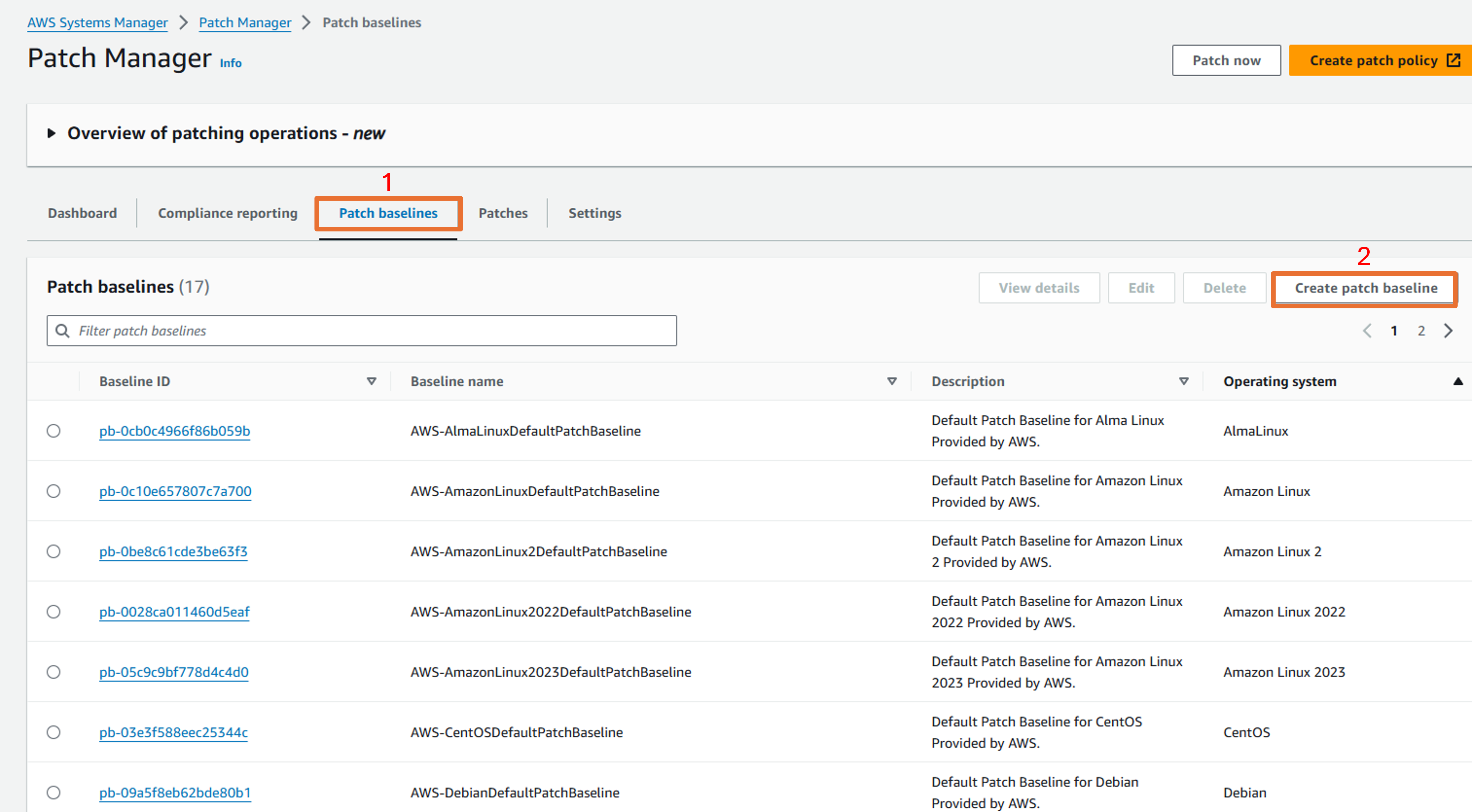
On the “Create patch baseline” page, input the Name “AmazonLinux2SecAndNonSecBaseline” in the section Patch baseline details.
On the “Create patch baseline” page, select Operating system “Amazon Linux 2” in the section Patch baseline details.
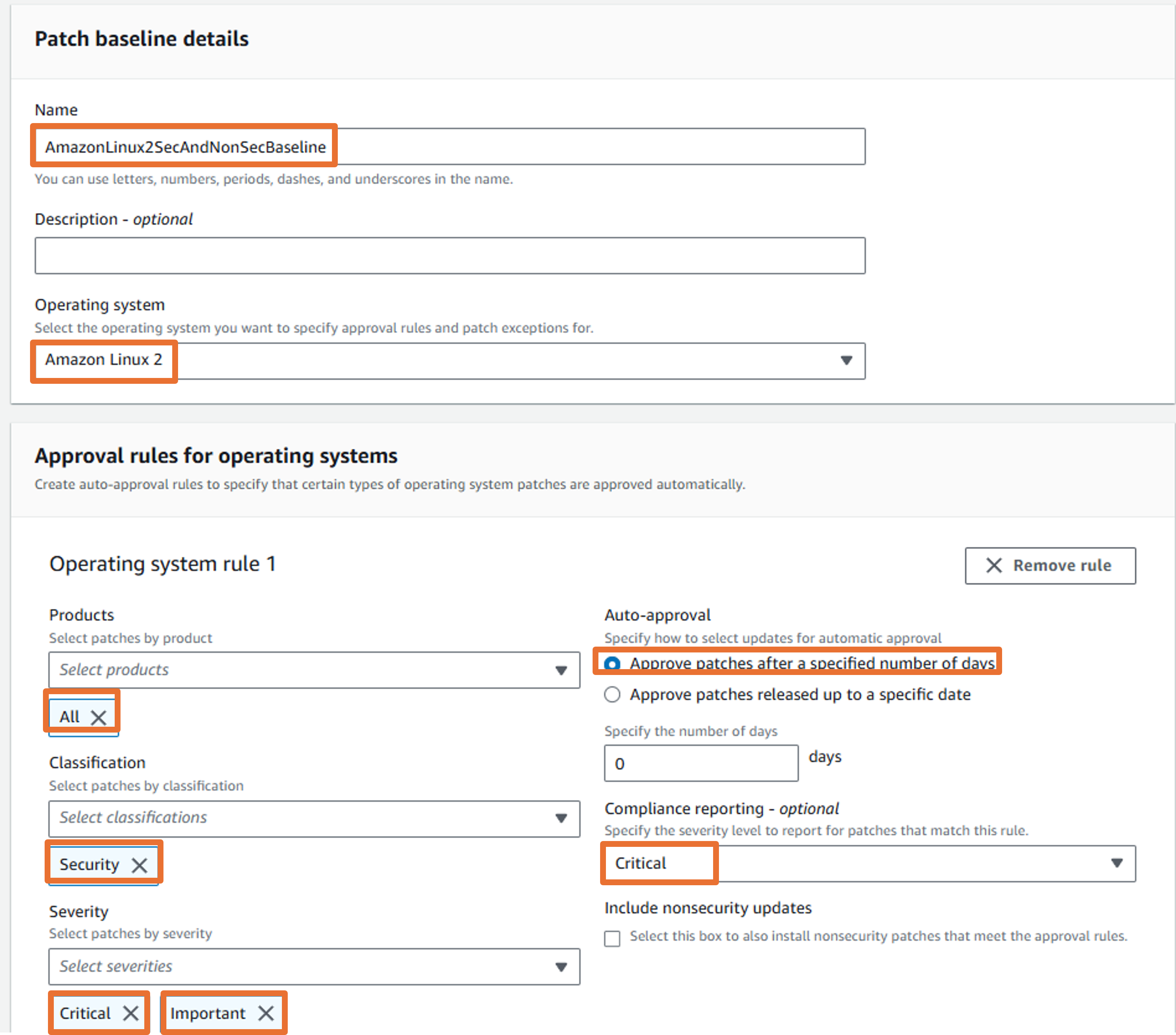
In the section Approval rules for operating systems, select “All” Products, “Security” and “Bugfix” Classification, and “Critical” and “Important” Severity. Select Approve patches after a specified number of days and input “14” days. Finally, select “Critical” for Compliance reporting.
Confirm that Operating system rule 1 looks like the following image.
Click Add rule to create “Operating system rule 2”.
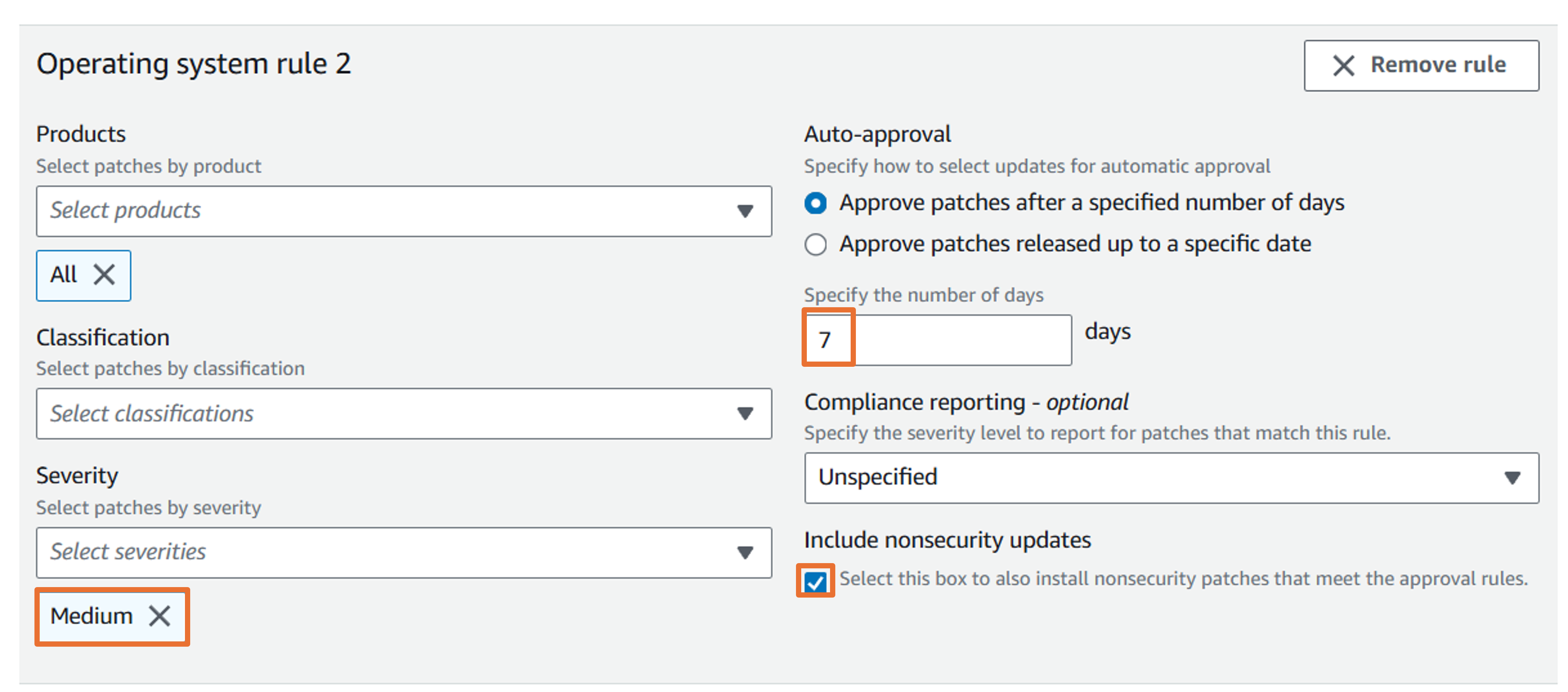
For “Operating system rule 2”, leave all the defaults, except set Auto-approval to 7 days, Compliance reporting to “Medium”, and check the box for Include nonsecurity updates.
Confirm that Operating system rule 2 looks like the following image.
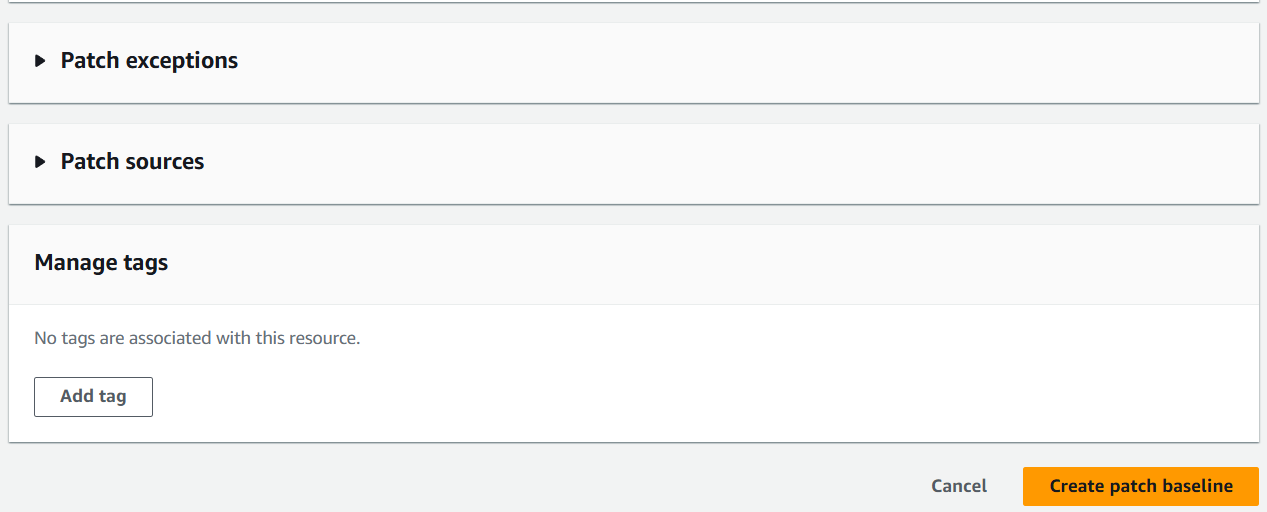
- At the bottom of the page, click Create patch baseline. You should see a banner at the top of the page stating “Create patch baseline request succeeded”. This patch baseline will only scan for or install updates based on the criteria defined within the patch approval rules. If an EC2 instance is missing a patch based on the criteria specified within the patch baseline, the instance will be flagged as noncompliant.
 Result:

Scan your instances with AWS-RunPatchBaseline via Run Command
Using Run Command, a capability of AWS Systems Manager, you can remotely and securely manage the configuration of your managed nodes. A managed node is any Amazon Elastic Compute Cloud (Amazon EC2) instance or non-EC2 machine in your hybrid and multi-cloud environment that has been configured for Systems Manager. Run Command allows you to automate common administrative tasks and perform one-time configuration changes at scale.
AWS Systems Manager supports AWS-RunPatchBaseline, a Systems Manager document (SSM document) for Patch Manager, a capability of AWS Systems Manager. This SSM document performs patching operations on managed nodes for both security related and other types of updates. When the document is run, it uses the patch baseline specified as the “default” for an operating system type if no patch group is specified. Otherwise, it uses the patch baseline that is associated with the patch group.
You can learn more about the AWS-RunPatchBaseline SSM document under the Documents section of Systems Manager or in the documentation here: https://docs.aws.amazon.com/systems-manager/latest/userguide/patch-manager-aws-runpatchbaseline.html
Open Run Command from the left navigation.
Click the Run command button.
Search for and select the AWS-RunPatchBaseline.
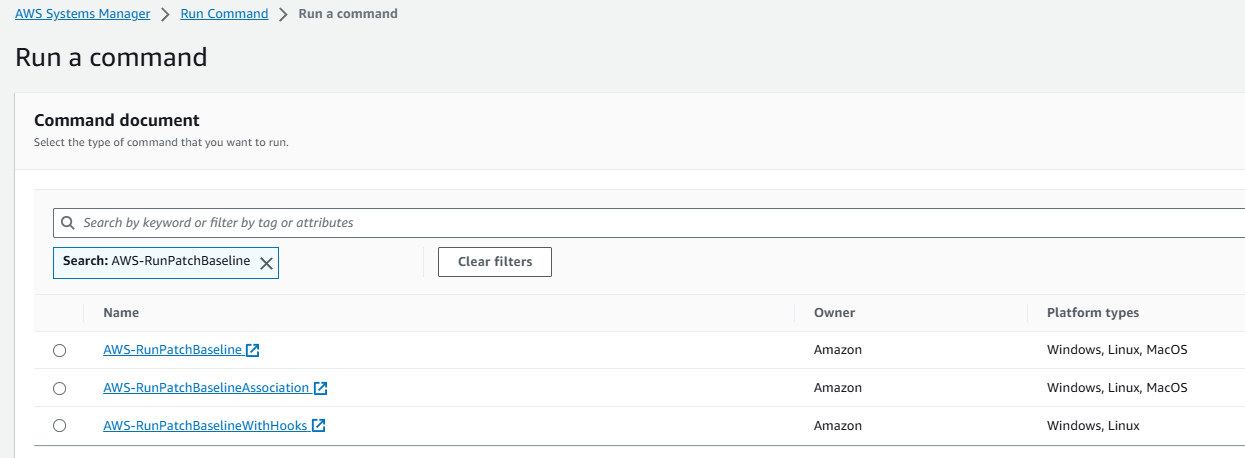
Under Command parameters, make sure “Scan” is the Operation selected. Leave all the other default parameters.
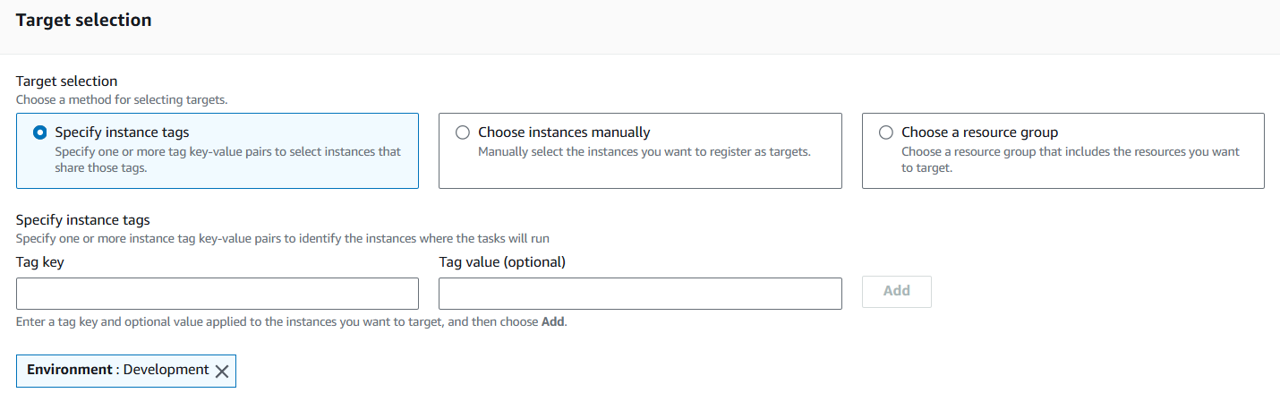
Under Target selection, specify instance tags. Input “Environment” for Tag key and “Development” for Tag value.
Click Add next to the key value pair you just entered.
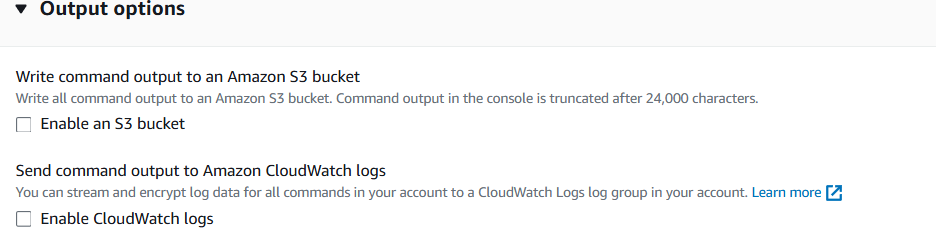
Under Output options deselect Enable an S3 bucket.
Click Run at the bottom of the page. Refresh the page until the overall status is “Success”.
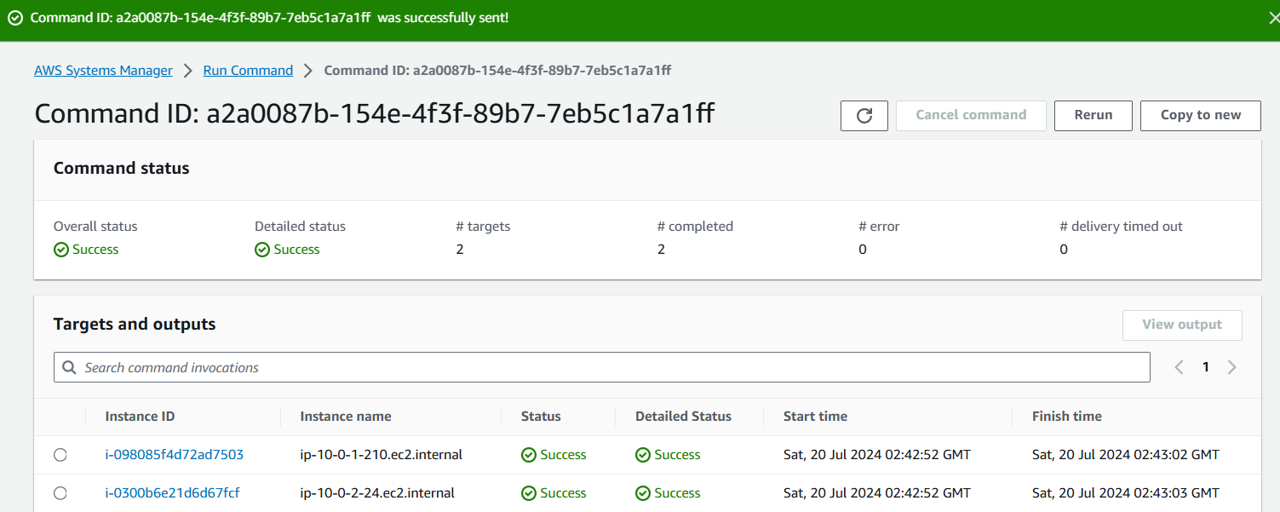
Under Targets and outputs, click the Instance ID of one of the EC2 instances targeted (that has the key-value pair you specified) to view the output from the command execution. Take a minute to review the outputs of each step.
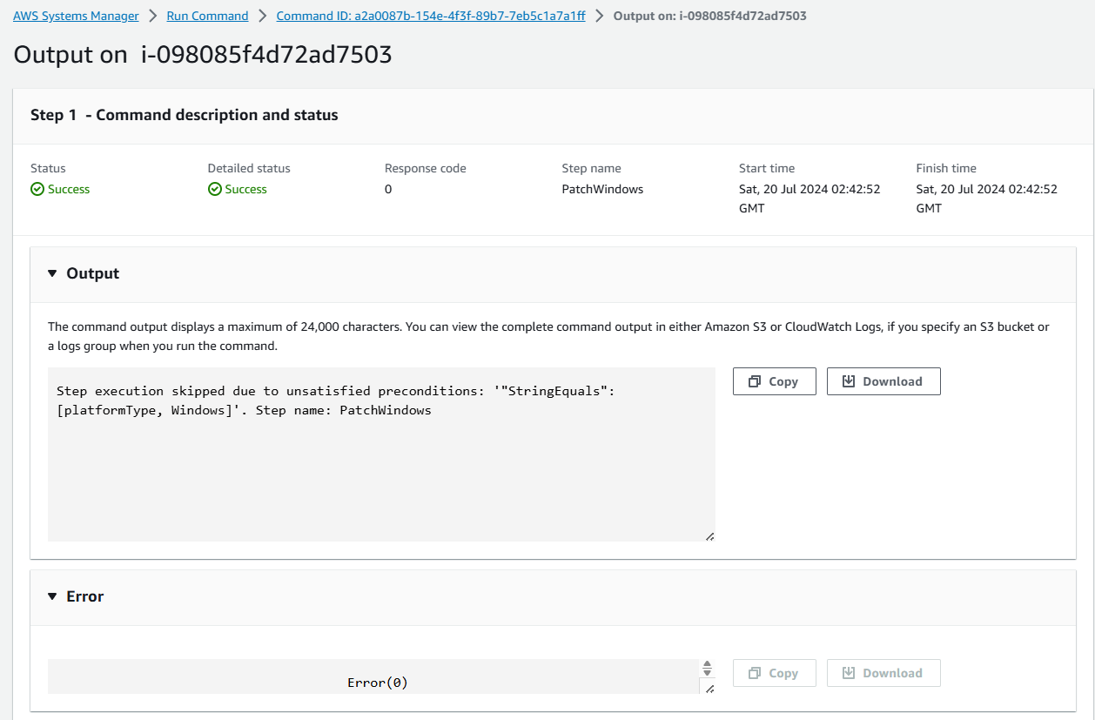 Observe step 2:
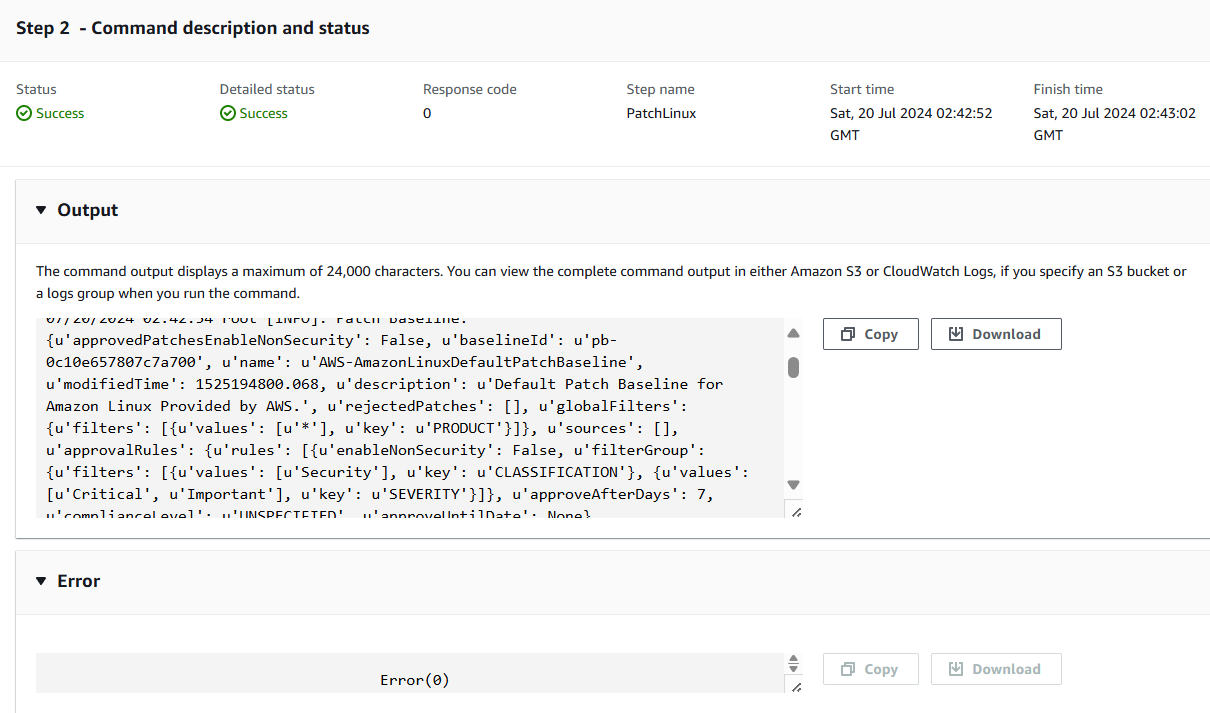 Observe step 3:
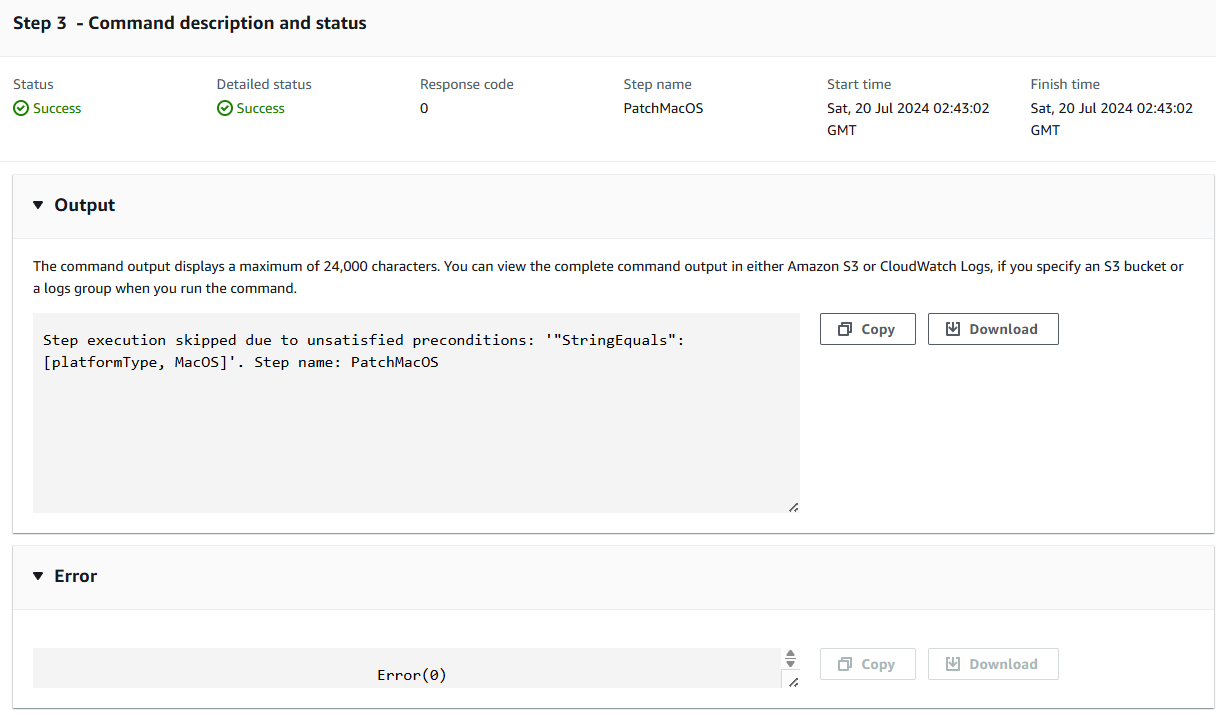
Review patch compliance for managed nodes
Return to the Patch Manager dashboard using the navigation in Systems Manager. https://us-east-1.console.aws.amazon.com/systems-manager/patch-manager/dashboard?region=us-east-1
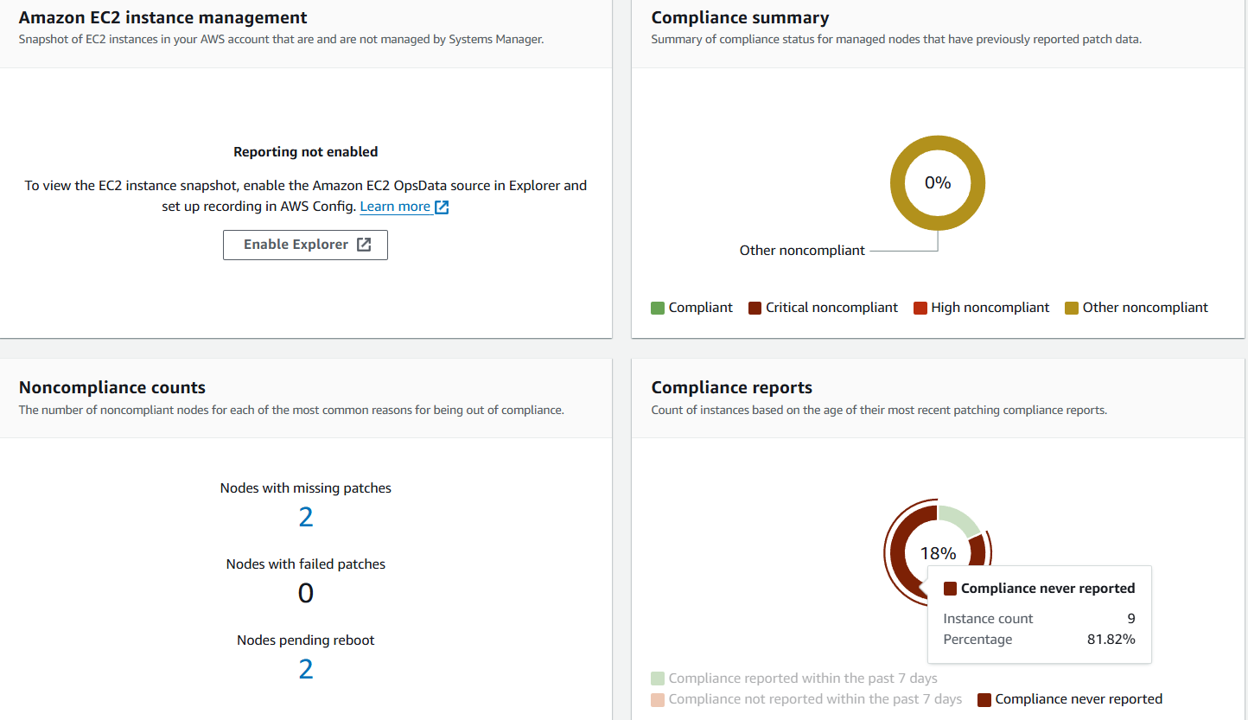
Here you’ll notice that some of your EC2 instances are not compliant and multiple nodes are missing patches.
Open the Compliance reporting tab and review the instances listed along with their compliance status and other information, such as missing patches.
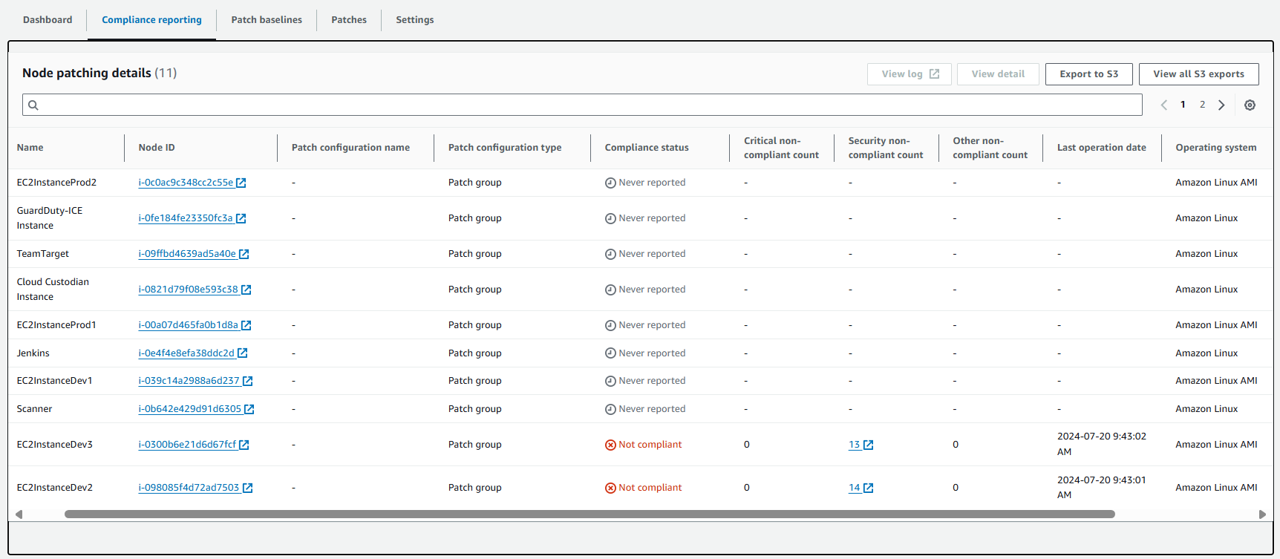
Select one of the EC2 instances that has a compliance status of Not compliant.
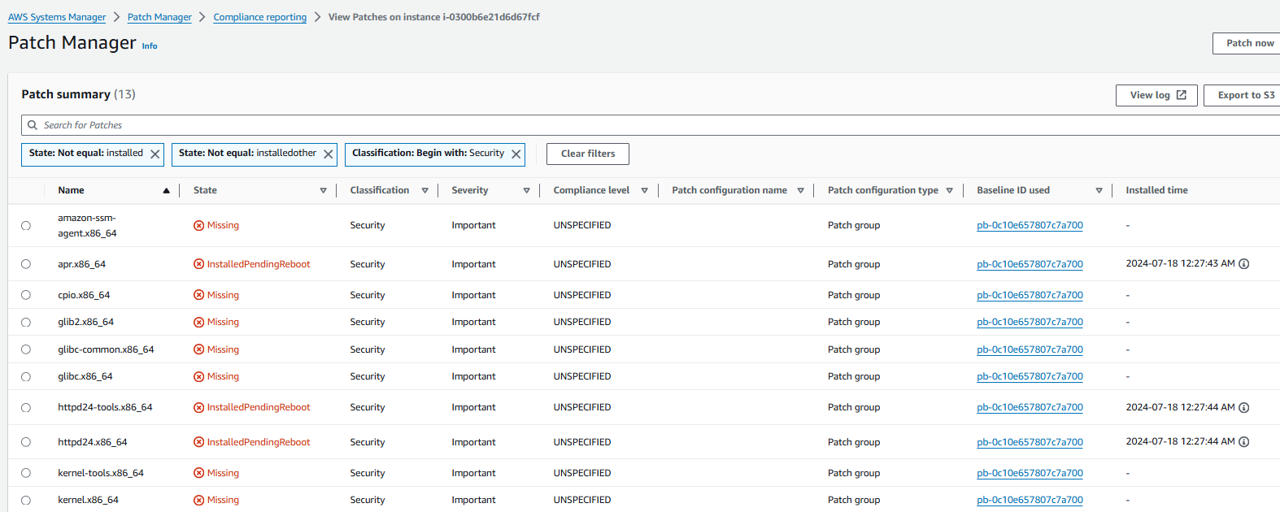
Click the link for that instance in the Security non-compliant count column.

This page shows the patch summary for the instance. You can optionally select missing patches to see more details.
Install missing patches using Run Command
Return to the Run Command page in Systems Manager and click the button for Run Command.
From the list of command documents, search for and select AWS-RunPatchBaseline.
This time, under Command parameters, set Operation to “Install”.
Again, under Target selection, set Tag key to “Environment” and Tag value to “Development”. Click Add.
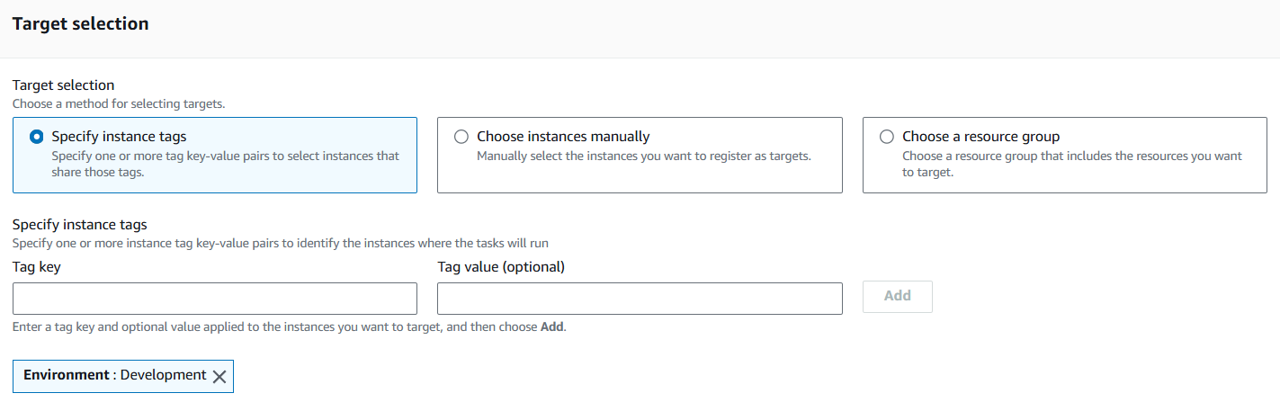
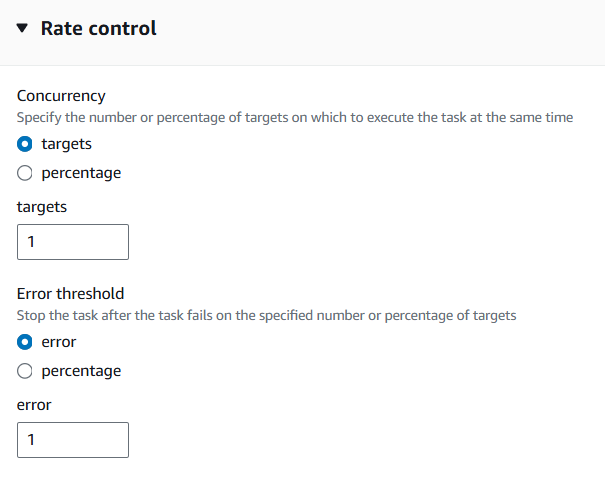
Expand the Rate control section and set Concurrency targets to 1 and Error threshold to 1.
Deselect Enable an S3 bucket under Output options.
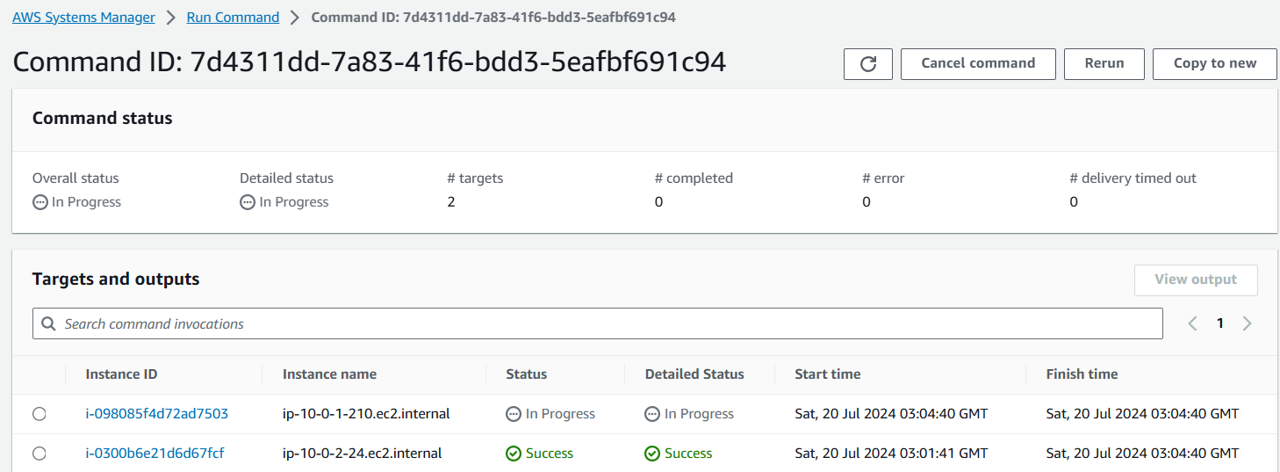
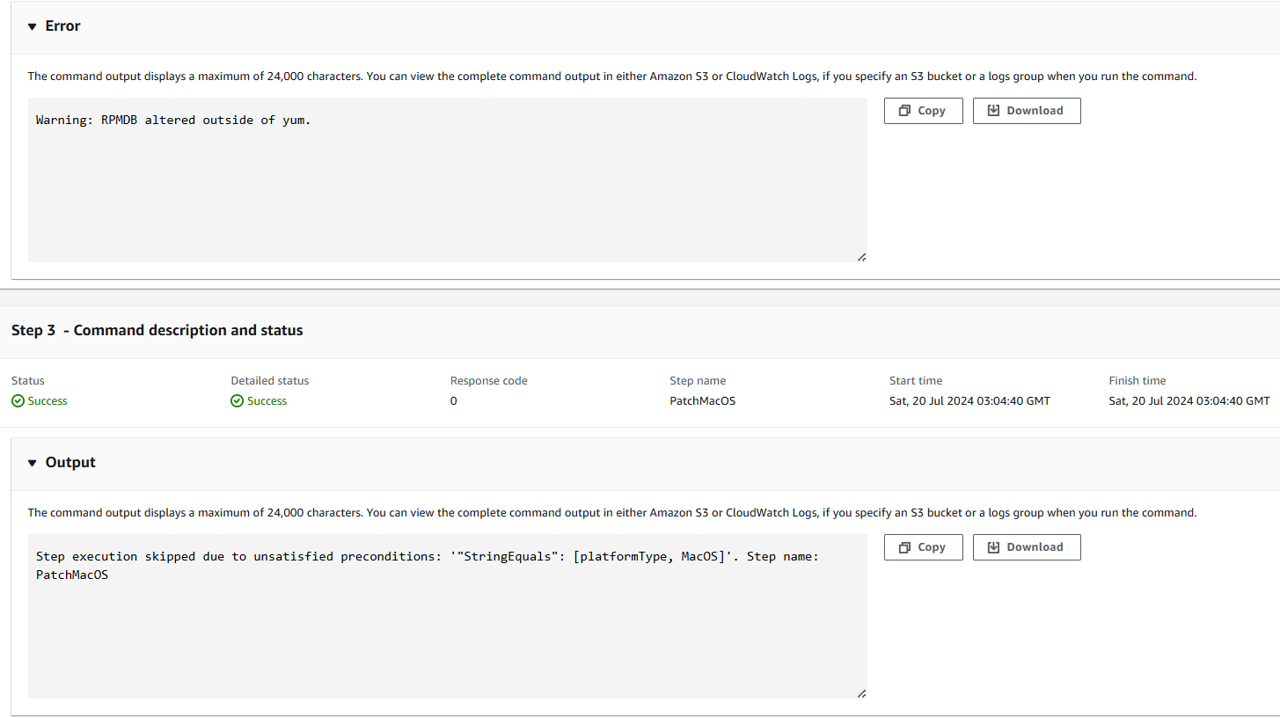
Click the button to Run at the bottom of the page. This will take 3-5 minutes to complete. If any updates are installed by Patch Manager, the patched instance is rebooted by default. Refresh the page until you see “Success”. Observe step 1, 2:
 Observe step 3:
To check what instances are still missing patches, return to the Patch Manager dashboard and open the Compliance reporting tab. You should see there are no missing patches!