Respond to a compromised S3 Bucket
Scenario / Problem Statement: You have been assigned a GuardDuty finding to investigate and remediate. The GuardDuty finding type is “Stealth:S3/ServerAccessLoggingDisabled”.
Navigate to the GuardDuty console and open the Findings page. You should see findings with types that start with Stealth:S3 and Policy:S3. If you do not see those findings, try refreshing the page.
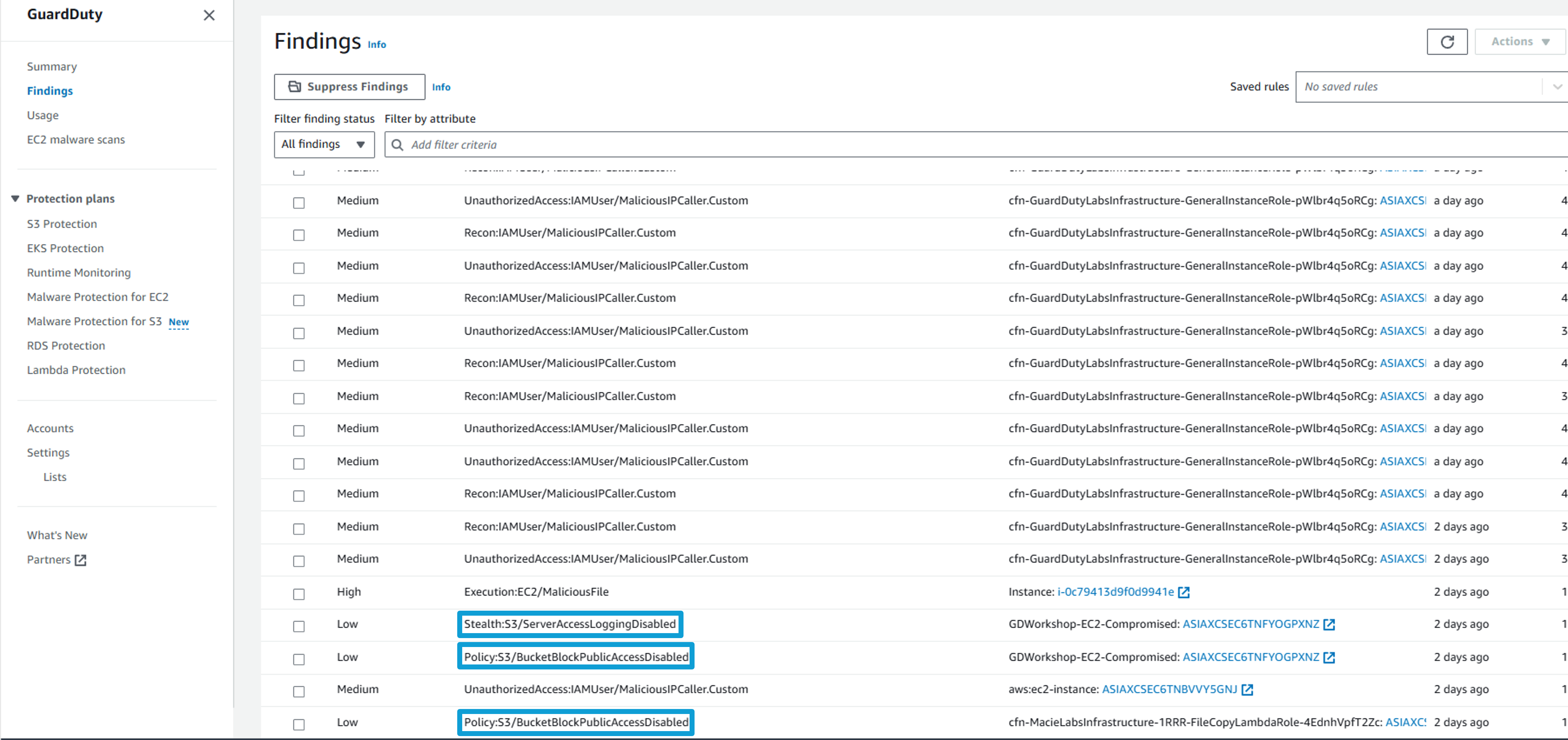
Click on the Stealth:S3/ServerAccessLoggingDisabled finding to view the full details. You can see the finding details include information about what happened, what AWS resources were involved in the suspicious activity, when this activity took place, and other additional information. Under Resource Affected, find which S3 bucket is associated with this finding, which IAM User (User Name) made the change, and the Access key ID used.
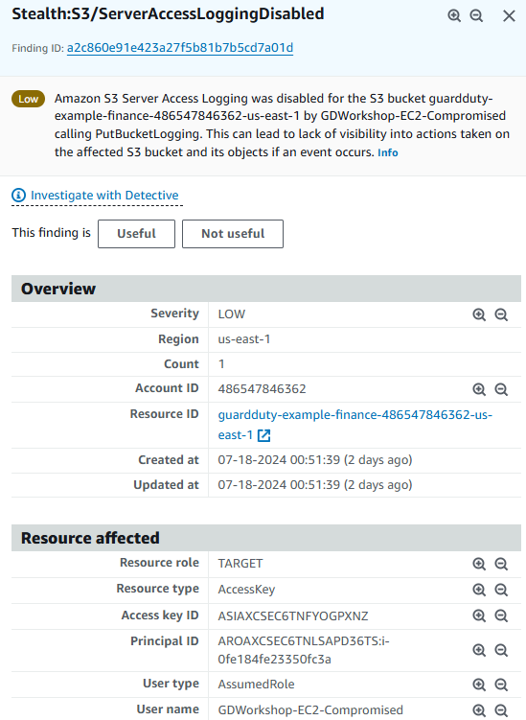 This finding informs you that S3 server access logging is disabled for the bucket. If disabled, no logs are created for any actions taken on the S3 bucket or on the objects in the bucket, unless S3 object level logging is enabled. Even though this is a low severity finding, it is important to investigate why someone disabled logging. Disabling logging could be used to cover up changes that should not be been made. To learn more, see S3 Server Access Logging.
Investigate another S3 policy finding. Click on the finding Policy:S3/BucketBlockPublicAccessDisabled. This finding is generated when block public access settings are disabled, if they were previously enabled. This may have been an intended change or could have been an accidental or malicious change to the bucket setting. In such a situation it is always good to confirm with the bucket owner if this was intentional. Given the context of what the bucket is used for, this seems suspicious.
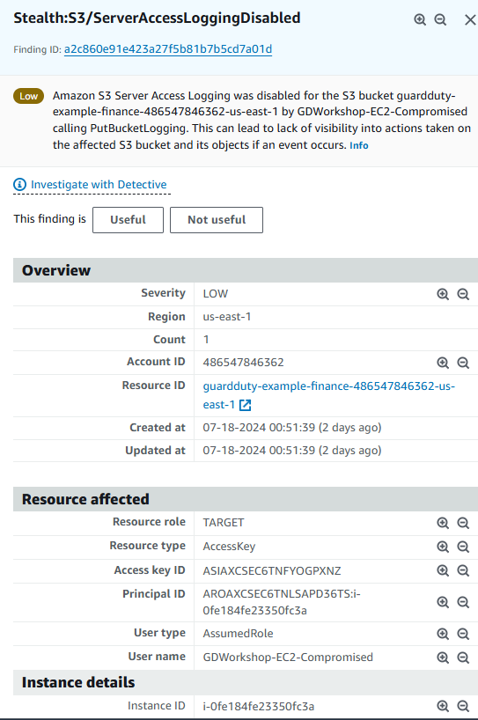
To determine the actions that the IAM User took, click on each of the findings. Find the API calls that were made by looking under Action and then API. Are these management events or data plane events? GuardDuty is able to analyze large volumes of data and identify potential threats in your environment. It is still important to correlate other data to understand the full scope of the potential threat. In this case you would use the details in this finding to pinpoint historical user activity in AWS CloudTrail. You could further investigate and analyze the root cause of this security finding with Amazon Detective.
These IAM findings are being generated by the “malicious EC2” instance making API calls. GuardDuty generates findings for these API calls that disable S3 logging and S3 block public access settings.
Manually remediate the S3 bucket
You confirmed with the bucket owner that the changes need to be reverted back. Proceed to remediate the S3 findings.
Navigate to the AWS S3 Console.
Click the name of the S3 bucket that starts with “guardduty-example-finance”.
Click on the Properties tab, scroll down to Server access logging, click Edit, and select Enable.
After selecting Enable, a prompt to identify a “Target bucket” will appear. Click Browse S3 and select the bucket name starting with guardduty-example-log. Click Choose path.
Finally, click Save changes. You have enabled server access logging!
To revert the bucket back to being private, click on the Permissions tab, and click the Edit button under the Block public access (bucket setting).
Select the Block all public access option, click Save changes, and type “confirm” in the dialogue box that appears. Click Confirm. The bucket is private again! Another option for customers to protect against unintentional bucket exposures is to add service control policies (SCP). An SCP defines a guardrail, or sets limits, on the actions that the account’s administrator can delegate to the IAM users and roles in the accounts.
Disable the access keys identified in the incident
While the security team is analyzing the previous activity of this user to better understand the scope of the issue, you need to disable the access key associated with the user to prevent further unauthorized/unintended actions.
Navigate to the AWS IAM console .
Click Users in the left navigation.
Select the GD-Workshop-Compromised2-Simulated user.
Click the Security Credentials tab.
Scroll down to Access keys, click the Actions dropdown, and select Deactivate. In the confirmation popup, click Deactivate. If you get an error making the key inactive, you can remove the access key.
Automating Remediation
In step 7, you manually remediated part of the issue by re-enabling S3 server access logging. You also have the option of doing this with automation. One approach is to use AWS Config Managed Rules. AWS Config provides AWS managed rules, which are predefined, customizable rules that AWS Config uses to evaluate whether your AWS resources comply with common best practices. You can customize the behavior of a managed rule to suit your needs. AWS Config allows you to remediate noncompliant resources that are evaluated by AWS Config Rules. In this case, you can use the managed rule “s3-bucket-logging-enabled” and configure the rule to automatically enable logging for your S3 buckets.