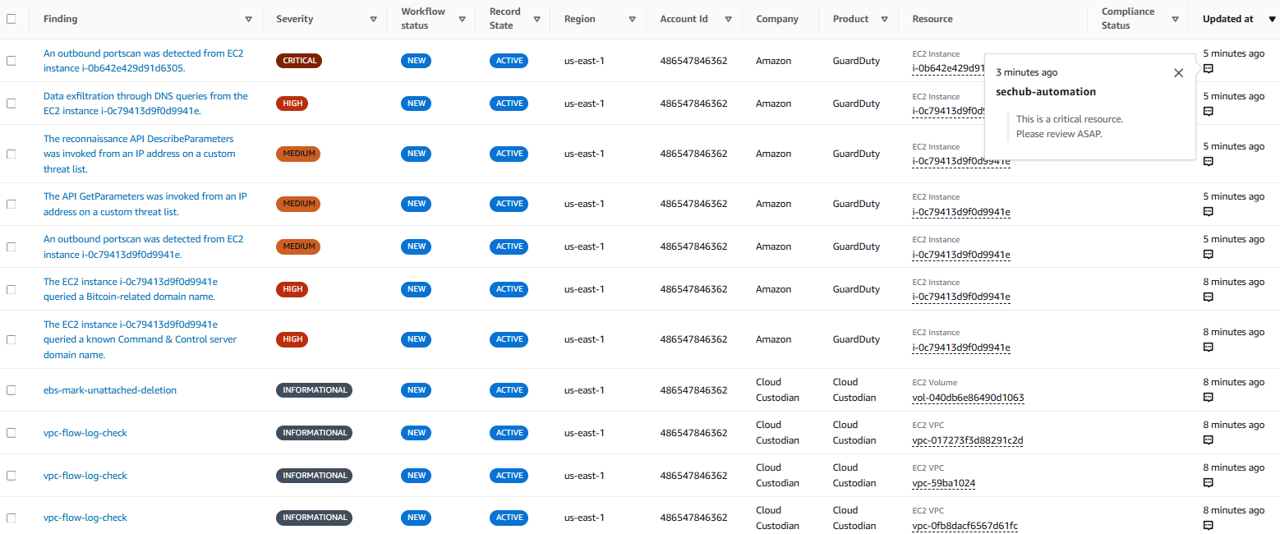
Prioritizing findings at scale with automations
Automate elevating finding severity
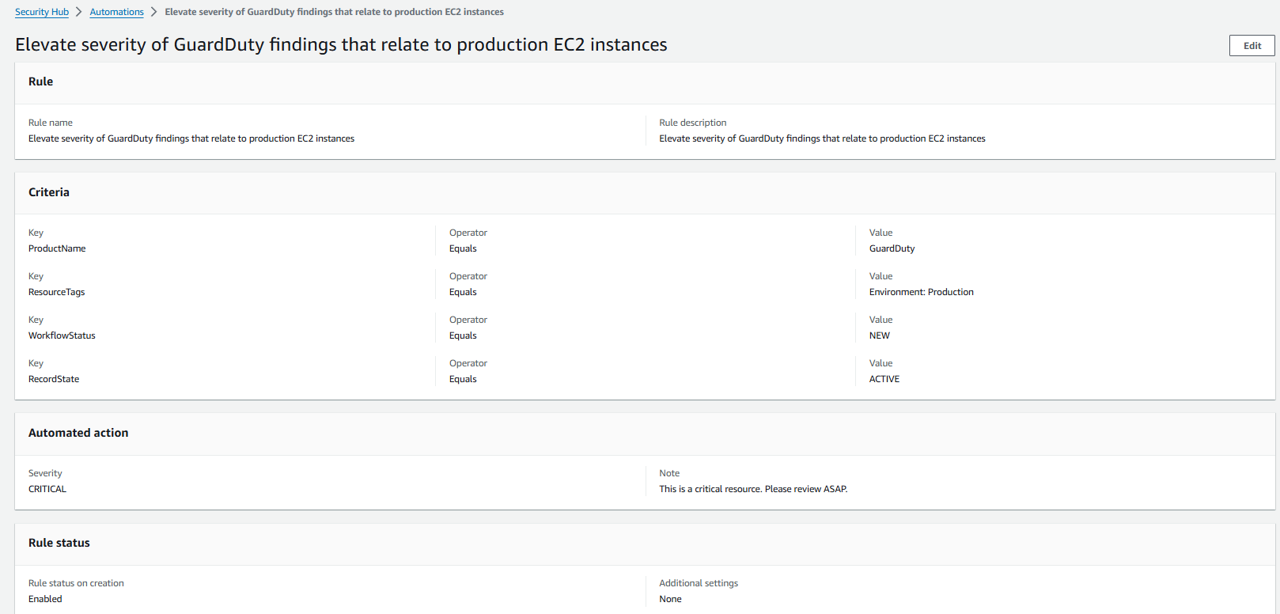
The first automation you will set up will be to elevate the severity of priority findings for business critical applications. Specifically, we want to elevate the severity of all GuardDuty findings for EC2 instances tagged for production.
Open the Automations page in Security Hub.
Click Create rule.
For this automation rule, we’ll start with a template. Leave “Create a rule from template” selected and under Rule template pick Elevate severity of findings that relate to important resources.
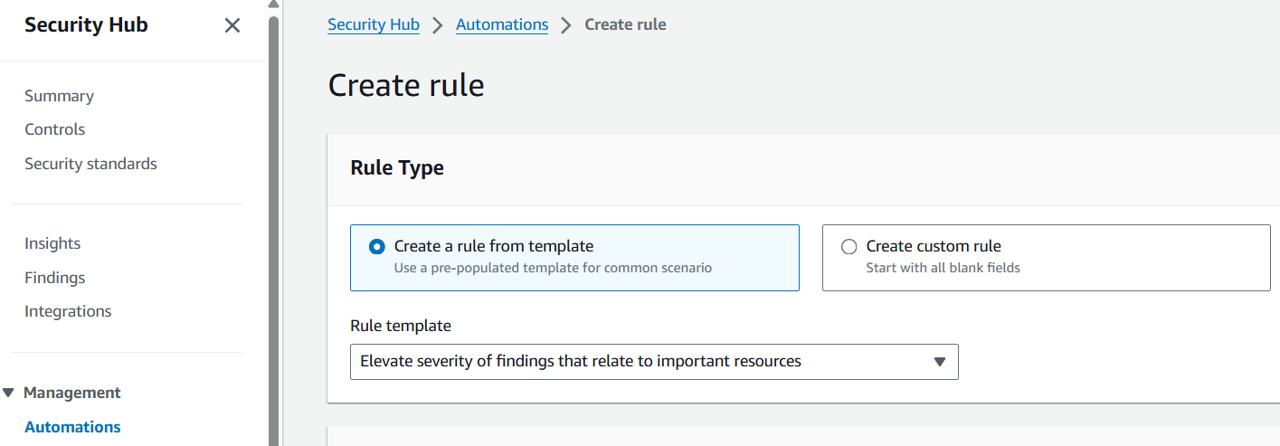
Change the Rule name to “Elevate severity of GuardDuty findings that relate to production EC2 instances”.
Copy the rule name into the Rule description or type your own description.
Take a moment to review the rule. We’ll need to change some of the criteria for our use case.
Change the Value of the first criteria (Key: ProductName) to “GuardDuty”.
Click Remove next to the criteria, Key: ComplianceStatus.
Click Remove next to the last criteria (Key: ResourceId).
Click Add criteria. For Key select ResourceTags. For Operator select EQUALS. For Value, input “Environment” into the top box and “Production” into the bottom box (this is the key-value pair for the tag).
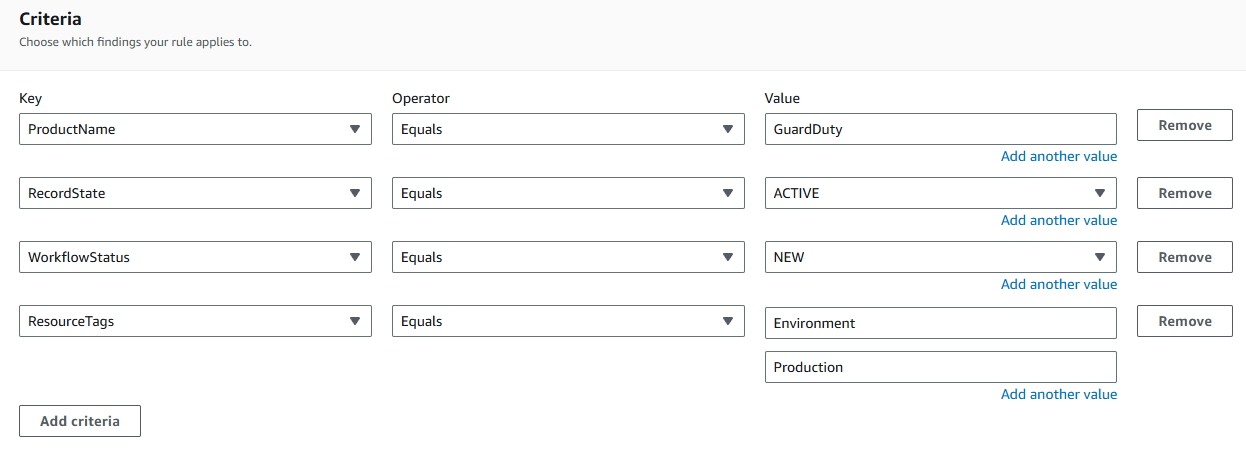
In the Preview of findings that match criteria click Refresh to make sure you configured everything correctly. You should see a preview of the existing findings that meet the criteria.
For this rule, we’ll elevate all the matching findings to HIGH severity. If implementing this for your organization, you may want an additional rule to elevate findings from GuardDuty that are originally HIGH to CRITICAL. In the section, Automated action, set Severity to HIGH.
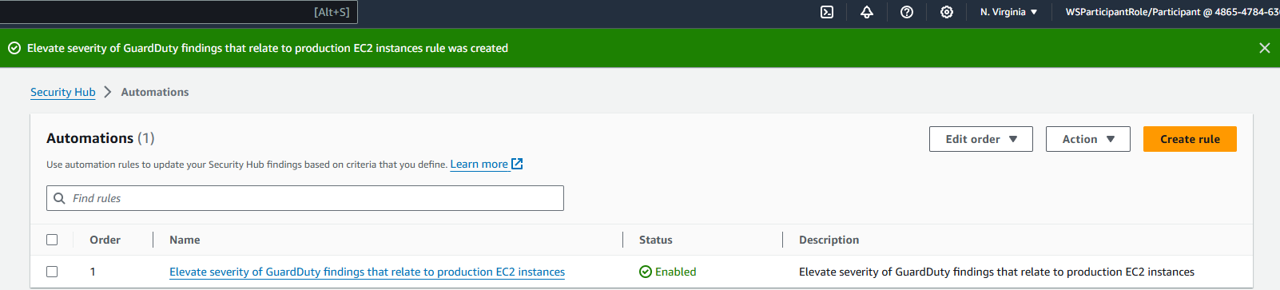
Leave the other default settings and click Create rule. Result:
Automate adding user defined fields to production alerts
There are circumstances where you may want to identify alerts on production resources, but not elevate the severity. One approach to this is adding notes and user defined fields. The next automation you will set up will be to add notes and user defined fields to any findings from an accounts we identify as production.
Return to the Automations page in Security Hub.
Click Create rule.
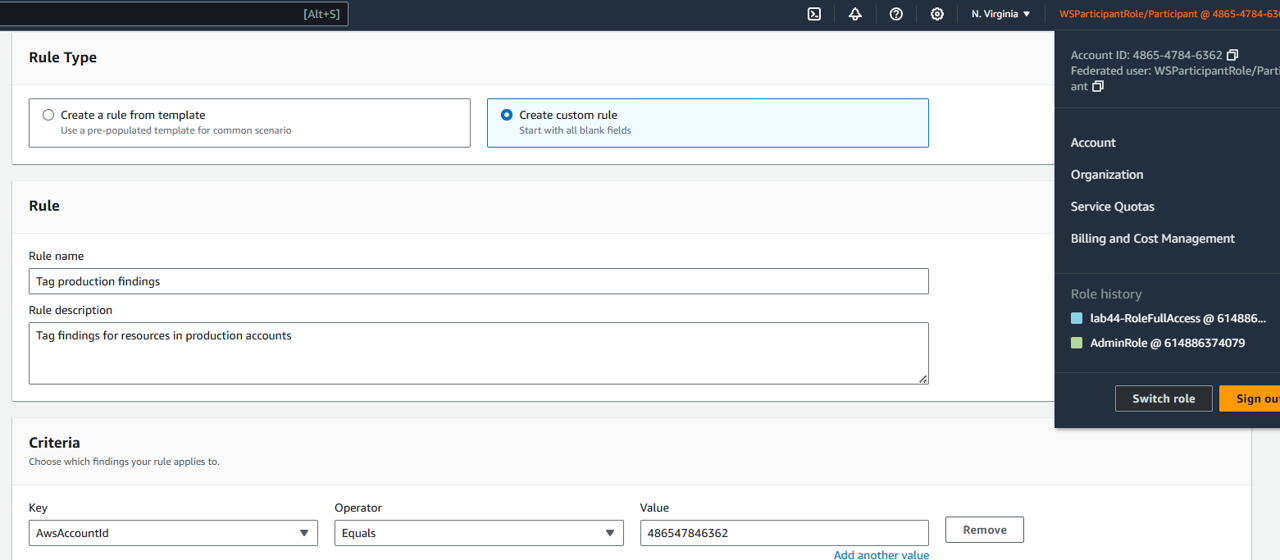
For this automation rule, we’ll select Create custom rule.
Change the Rule name to “Tag production findings”.
Change the Rule description to “Tag findings for resources in production accounts”.
For this rule, we only need one criteria. Set the Key to AwsAccountId. Set Operator to EQUALS. Set Value to the ID of the account you are in right now. The account ID can be found in the top right-hand corner of the AWS console. Make sure there are no spaces or dashes when copying the account ID.
Click Refresh to preview the findings that meet the criteria.
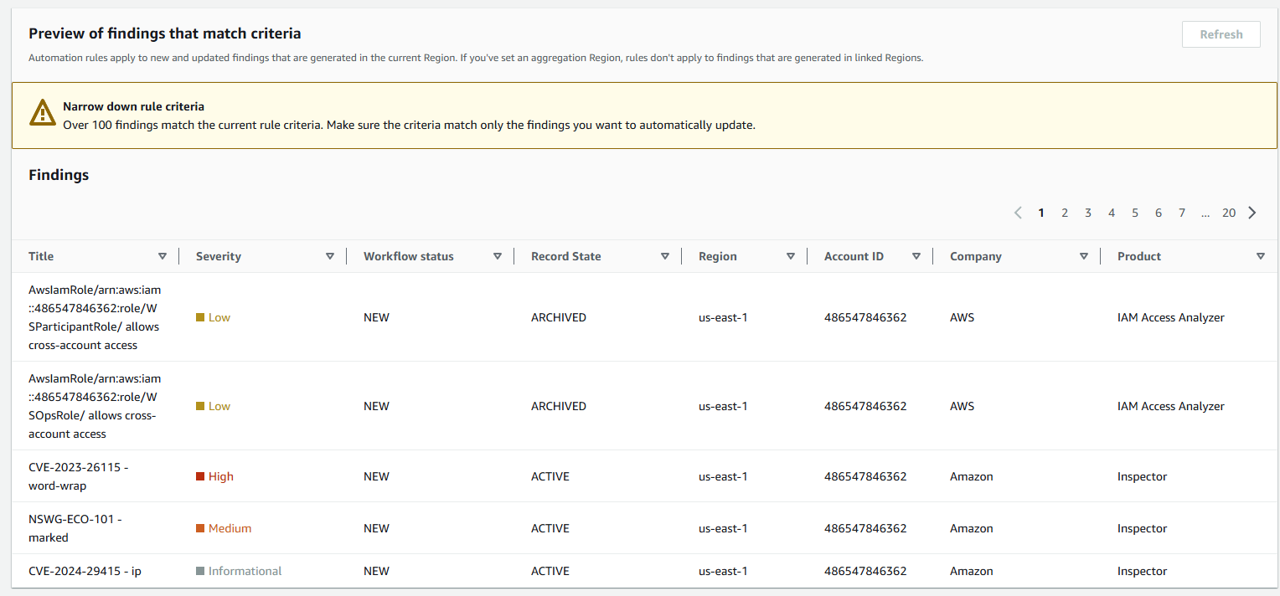
Note to Participants: Do to limitations in Workshop Studio, you only have one account, so this automation rule will apply to every one of your findings. However, in a multi-account architecture where you have set up a delegated admin through AWS Organization, you will be able to follow the same instructions and identify one or more accounts, selectively, as production.
Scroll down to Automated action. For Note input “This finding is in a production account (identified via automation rule)”.
Click Add another key-value pair. For Key input “Environment”. For Value input “Production”.
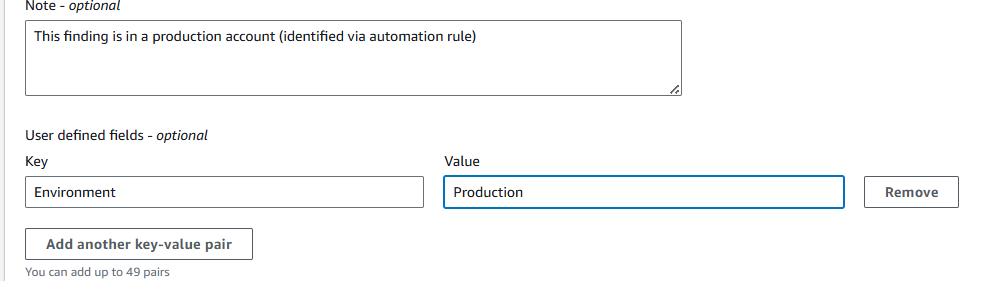
Leave the other default settings and click Create rule.
If you want to review a rule you created, you can click the Name of the rule from the Automations page. Click the name Tag Production findings.
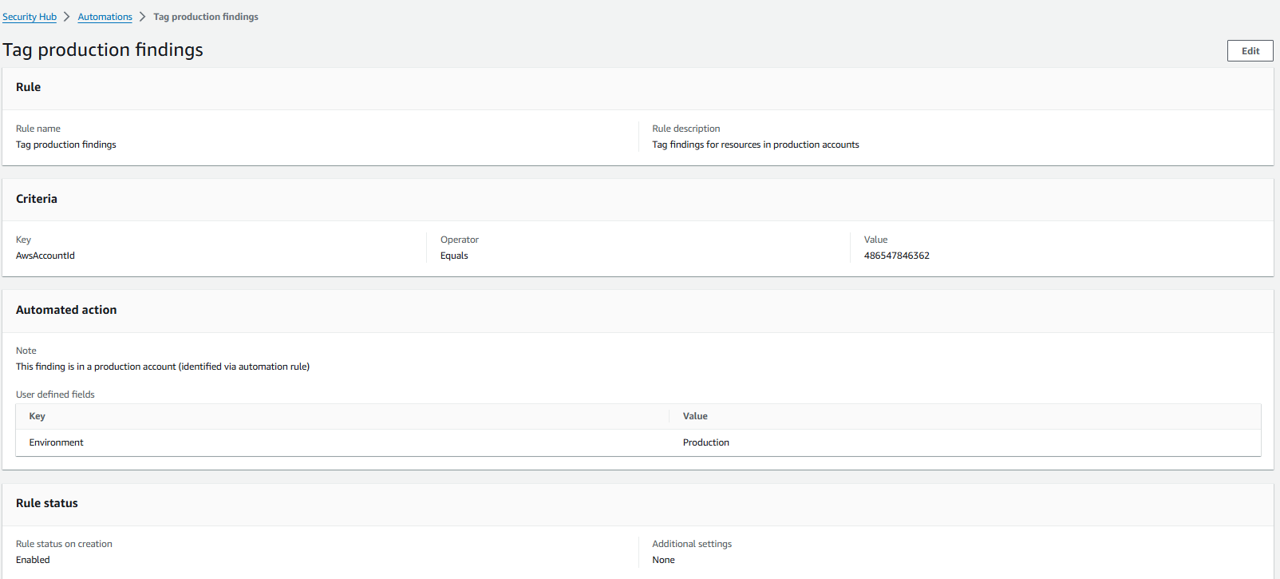 Another rule:
Automate adding user defined fields to findings aligned to organization goals
Next, set up automation similar to the last automation rule, but instead of adding user-defined fields to findings in production accounts, add them to findings that meet the criteria of an organization goal. In this case, the organization goal will be to secure AWS accounts and IAM. To implement this, your automation criteria will be findings from Security Hub controls for “Account” and “IAM”.
(The index 35 is from Workshop, not a mistake from the author) Return to the Automations page in Security Hub.
Click Create rule.
Select Create custom rule.
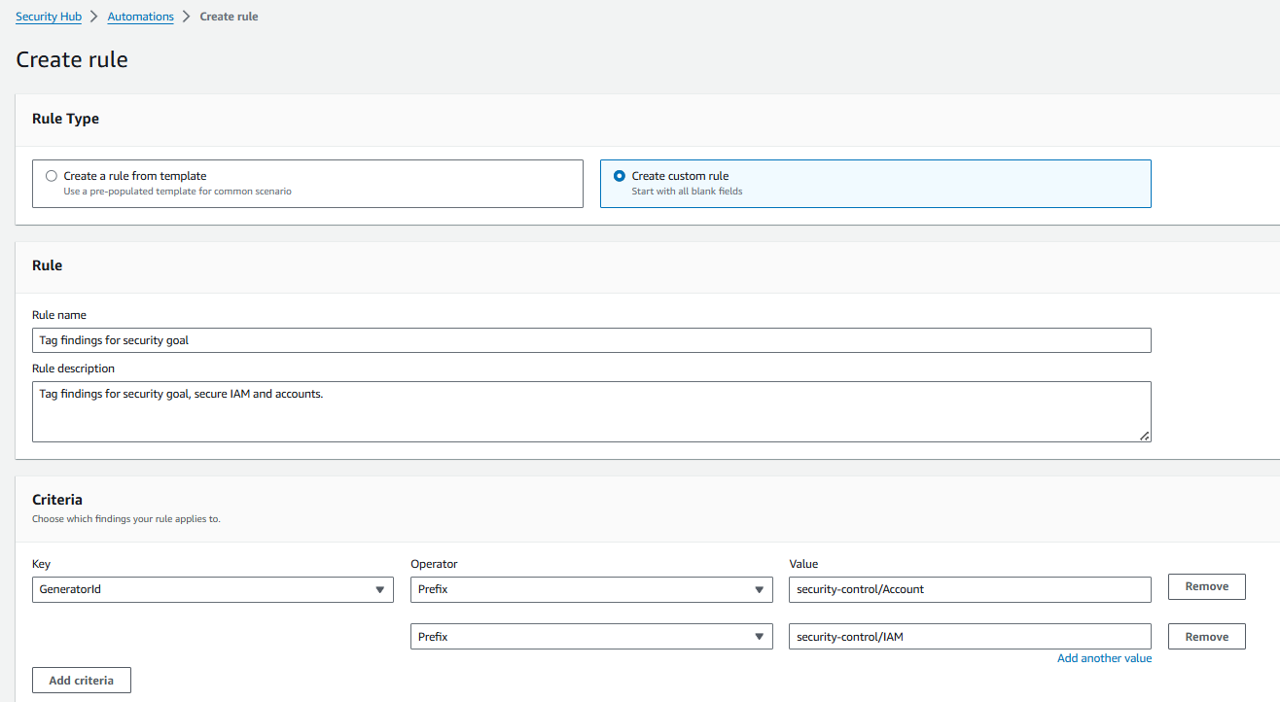
Change the Rule name to “Tag findings for security goal”.
Change the Rule description to “Tag findings for security goal, secure IAM and accounts.”.
We want our criteria to match all findings for Security Hub controls for “Account” or “IAM”. Under Criteria, select GeneratorId for Key.
Select PREFIX for Operator. By selecting “PREFIX” we don’t need criteria for every individual control. If you have enabled “Consolidated control findings” (which is the case for this account), you will just need to look for 2 control ID prefixes.
For Value, input “security-control/Account”. This will match any finding for a Security Hub control ID starting with “security-control/Account”.
Below the Value input box, click Add another value. This will create a second Operator and Value input for the same Key.
For the second Operator and Value, input PREFIX and “security-control/IAM”, respectively.
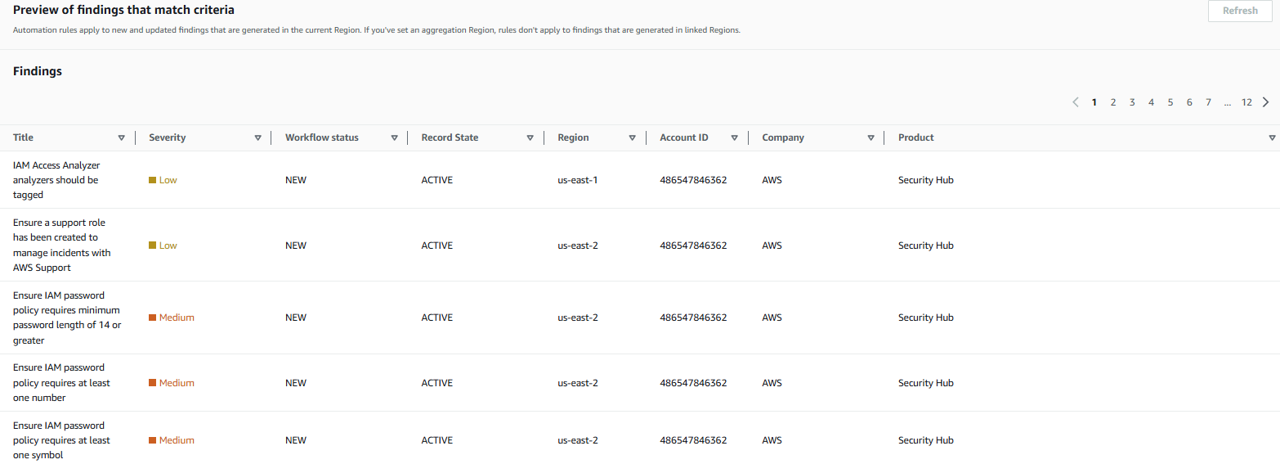
Click Refresh to preview the matching findings.
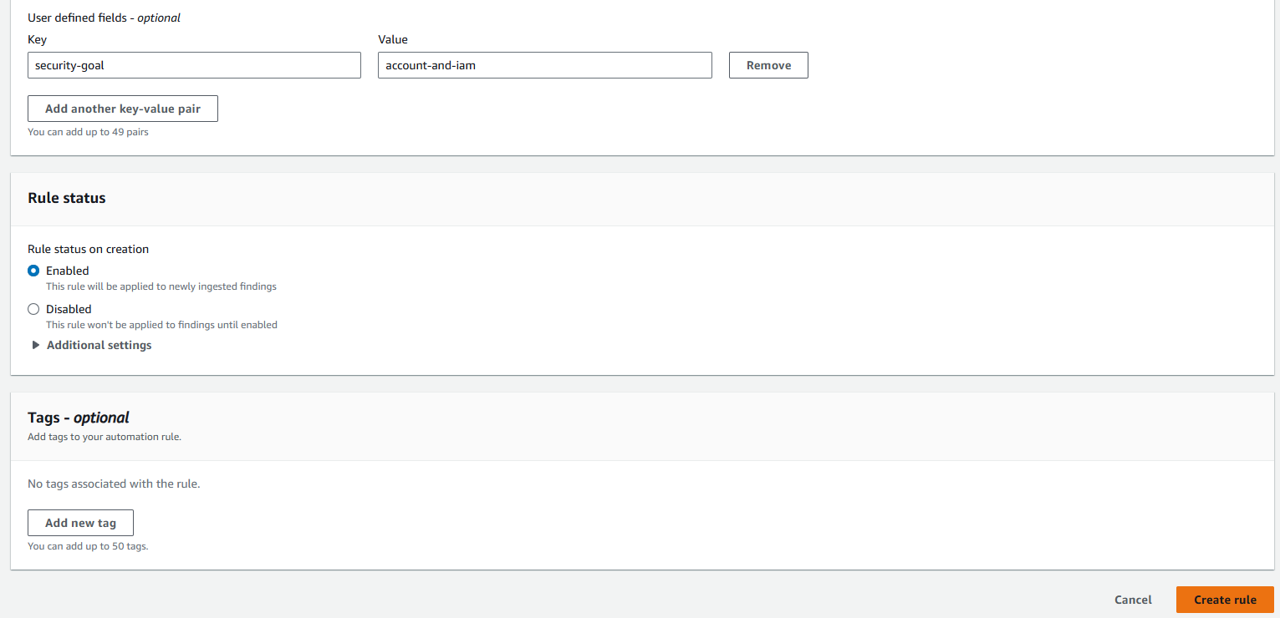
Under Automated action, click Add another key-value pair. For Key, input “security-goal”. For Value, input “account-and-iam”.
Leave the other default settings and click Create rule. Remember, you can use user-defined fields for filtering findings and creating insights in Security Hub if you want an easy we way track goals at an organization and account level.
Review findings updated by automation rules
Navigate to the Findings page in Security Hub.
Look for a finding that has the comment icon next to the Updated at time.
Click the title of a finding that has the comment icon next to the Updated at time to open the finding details.

Expand the Notes section to see the note created by our automation rule.
Click the History tab at the top of the finding details. You can see the timestamp of when and how the finding was updated by the automation rule.
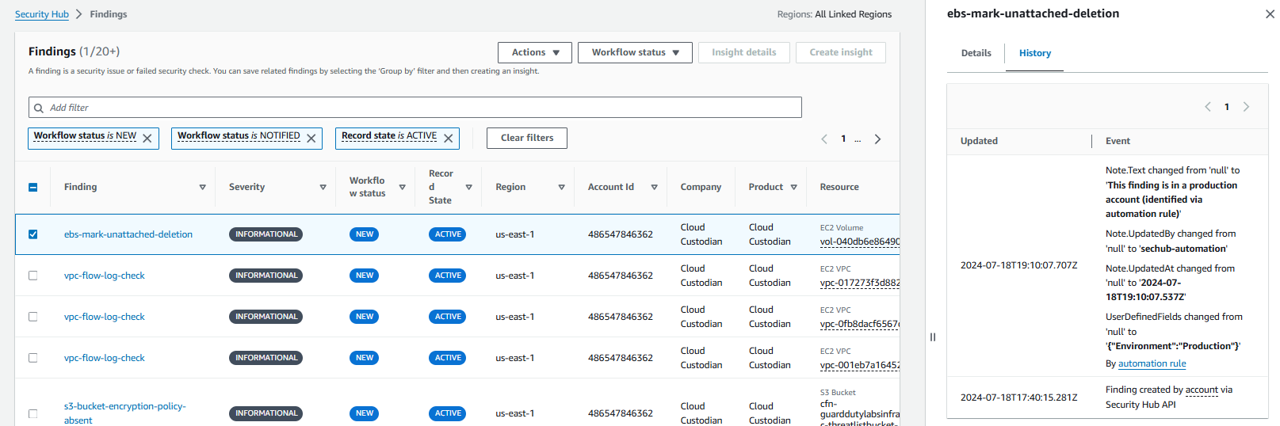
Watch another finding (after 5 minutes):
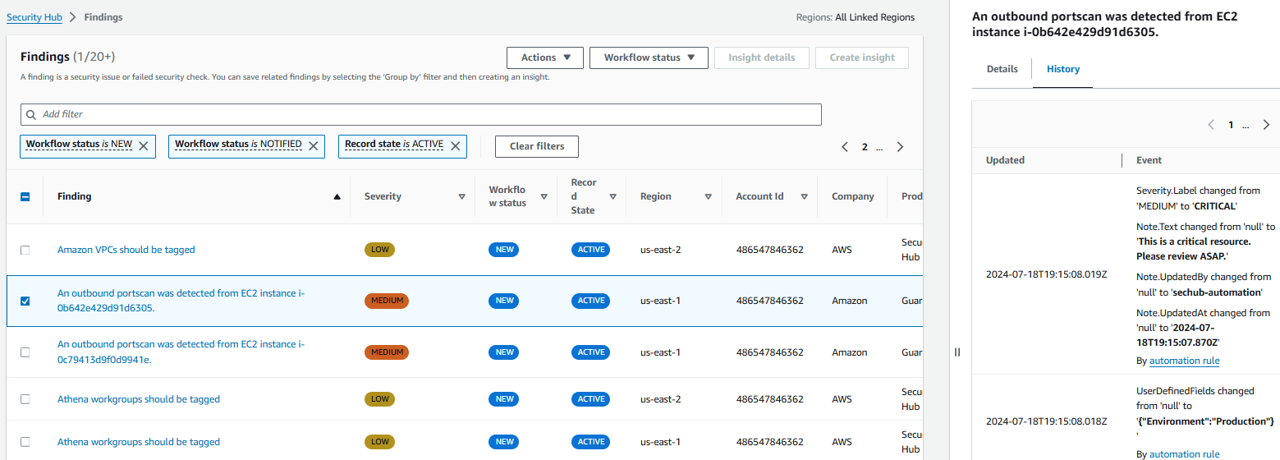
See the whole history:
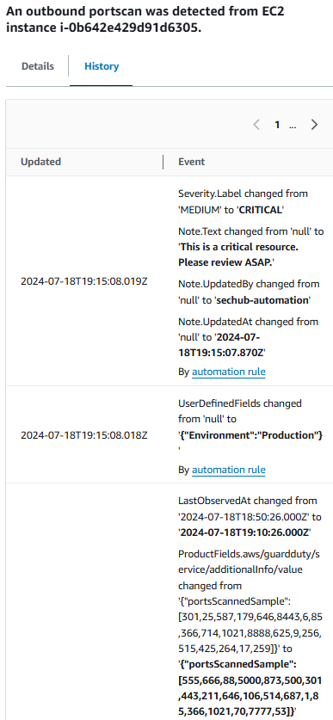
After 3 more minutes, the note is updated: